Automatic compliance evidence from Microsoft 365 and Google Workspace
What Hardenwell GRC reads from Microsoft 365 and Google Workspace, the checks it runs, what it never reads, and how results become dated evidence.
The Hardenwell GRC team
· 7 min read · Updated
Key takeaways
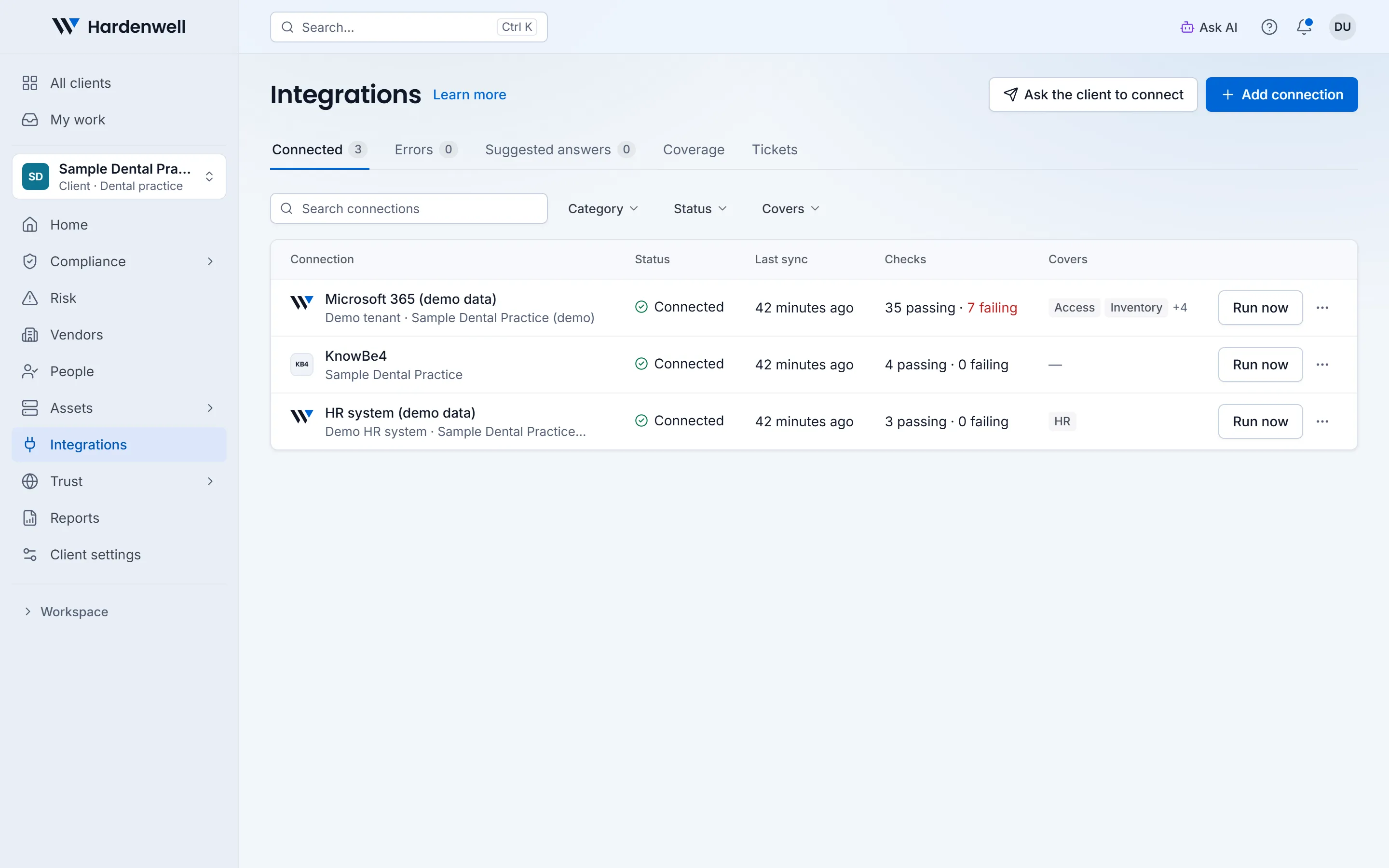
- Connect Microsoft 365 or Google Workspace with one admin sign-in. The connection only reads settings and never changes anything.
- Microsoft 365 runs 31 checks and Google Workspace runs 7, covering multi-factor sign-in, admin roles, old accounts and devices.
- A passing check saves dated evidence for what it proves. A failing one lists each account or device to fix, with a due date.
- The same approach covers more than fifty tools, including AWS, Azure, Okta, CrowdStrike, Slack and GitHub.
Hardenwell GRC connects to Microsoft 365 and Google Workspace with a read-only admin sign-in and checks the settings auditors ask about: multi-factor sign-in, admin roles, old accounts, guests and devices. A passing check saves dated evidence for what it proves, and each failing one lists the exact accounts or devices to fix. This post explains what they read, which checks they run and how results reach your frameworks.
Why automatic evidence beats screenshots
Most audits ask the same questions about email and identity. Is multi-factor sign-in required for everyone? Who are the administrators? Are the laptops encrypted? Did people who left lose their access? Without a connection, someone takes screenshots and does it again next quarter, and each one is out of date the next day.
A connection answers the same questions from the source, keeps answering them, and records each answer with its date. When something changes, you know before the auditor asks.
What the connections read, and what they never read
| Data | Microsoft 365 |  Google Workspace |
|---|---|---|
| Users, sign-in dates and admin roles | YesRead | YesRead |
| Which second sign-in methods each person has | YesMethod types only | YesEnrolled and enforced or not |
| Sign-in policies | YesSecurity defaults and Conditional Access | Yes2-Step Verification enforcement |
| Devices | YesIntune devices, encryption, compliance and settings | YesMobile and ChromeOS devices |
| Apps people gave access to | YesCounts per app, never who | PartlyOptional, counts per app |
| Email, chats, calendars and contacts | NoNever read | NoNever read |
| Files in OneDrive, SharePoint or Drive | NoNever read | NoNever read |
| Passwords and sign-in secrets | NoNever read | NoNever read |
The Microsoft 365 connection also reads Secure Score and the public email records of the tenant's own domains. With optional permissions, it reads open security alerts, users Microsoft marks as at risk and app protection on phones. Before you connect a tool, its page in Hardenwell GRC lists what the connection reads and what it never reads.
How to connect with one admin sign-in
For Microsoft 365, you click Continue to Microsoft and a Global Administrator approves read-only permissions for their tenant. Nobody has to register an app or copy a secret. If a client prefers its own app registration, that works too.
For Google Workspace, you click Connect with Google and a super admin signs in and approves read-only access. You can tick two extras, reading groups and finding the apps people use, and Google asks the admin for those too. A service account with domain-wide delegation is the other way in.
Firms that look after many clients can send the client's admin a private connect link. The admin connects without an account in Hardenwell GRC, and the connection lands in the right client. To stop the checks, delete the connection. To remove the access completely, also remove the app in the Microsoft or Google admin console.
Which checks run, and which frameworks they help
Microsoft 365 runs 31 checks and Google Workspace runs 7. Here are the main ones, with requirements each one helps with.
| Check | Microsoft 365 | Google Workspace | Passes when | Helps with, for example |
|---|---|---|---|---|
| All active users registered for MFA or 2-Step Verification | Yes | Yes | Every enabled member account has a second sign-in method | HIPAA 164.312(d), SOC 2 CC6.1, ISO 27001 A.8.5 |
| MFA enforced tenant-wide | Yes | No | Security defaults are on (MFA for administrators at every sign-in, for other users when Microsoft judges it necessary), or a Conditional Access policy requires MFA for all users and apps | HIPAA 164.312(d), PCI DSS 8.4 |
| 2-Step Verification enforced | No | Yes | 2-Step Verification is enforced, not just allowed, for every active user | HIPAA 164.312(d), PCI DSS 8.4 |
| All administrators registered for MFA or 2-Step Verification | Yes | Yes | Every account with an admin role has a second sign-in method | SOC 2 CC6.3, PCI DSS 7.2 |
| Global Administrator or Super Admin count within limits | Yes | Yes | The number of top administrators is within the range you set | SOC 2 CC6.3, HIPAA 164.308(a)(4)(i) |
| Legacy authentication blocked | Yes | No | Older protocols that can't do MFA, such as POP and IMAP, are blocked | HIPAA 164.312(d), PCI DSS 8.4 |
| No stale enabled accounts | Yes | Yes | No enabled account has gone more than 90 days without a sign-in | HIPAA 164.308(a)(3)(ii)(C), SOC 2 CC6.2 |
| Guest accounts within limit and active | Yes | No | Guests stay under your limit and none are inactive | SOC 2 CC6.3 |
| Managed devices encrypted | Yes | Yes | Every managed device reports storage encryption | HIPAA 164.312(a)(2)(iv), SOC 2 CC6.7 |
| Device inventory present and current | Yes | Yes | Devices are enrolled and checked in within 30 days | HIPAA 164.310(d)(1), ISO 27001 A.5.9 |
| Antivirus on every computer | Yes | No | Intune reports working antivirus on each computer | HIPAA 164.308(a)(5)(ii)(B), PCI DSS 5.2 |
| Email domains protected with SPF, DKIM and DMARC | Yes | No | Each domain that receives mail has SPF, DKIM and a DMARC policy of quarantine or reject | HIPAA 164.312(e)(1), SOC 2 CC6.7 |
Microsoft 365 also checks device compliance, Secure Score, screen lock, the host firewall, password managers, unsupported operating systems, jailbroken phones and risky app consents. With optional permissions, it checks open security alerts, users at high risk and app protection on phones. Nine more are stricter good practices shown for information only, such as phishing-resistant sign-in for administrators, and never count as failing work. You can change limits such as the 90 days, and leave out break-glass accounts.
Note
Some Microsoft 365 checks need a Microsoft Entra ID P1 or P2 licence, such as sign-in dates and Conditional Access. Without P1, Hardenwell GRC still reads each person's sign-in methods one by one. Device checks need Intune. Google Workspace checks work on any edition.
How a check becomes evidence
- The connection syncs on its own. In production, connections sync again about once an hour, and you can start a sync by hand at any time.
- A passing check saves evidence when it proves one. The result is filed under the evidence type it proves, such as the MFA enforcement report or the list of admin accounts. It stays current while syncs keep refreshing it, and a new dated item starts each week.
- A failing check names what to fix. The evidence from that check stops being current. Monitoring lists each failing account or device with a due date from the client's fix-by days, and many checks include steps to fix them.
- A person decides the exceptions. You can leave out one account with a reason, such as a break-glass account, or switch a check off with a reason. Exceptions can end on a date.
- Every run can become a record. Download any check run as a dated PDF. New runs keep the SHA-256 fingerprint stored when the check ran, and the PDF prints it beside one worked out again, so an auditor can see whether anything changed.
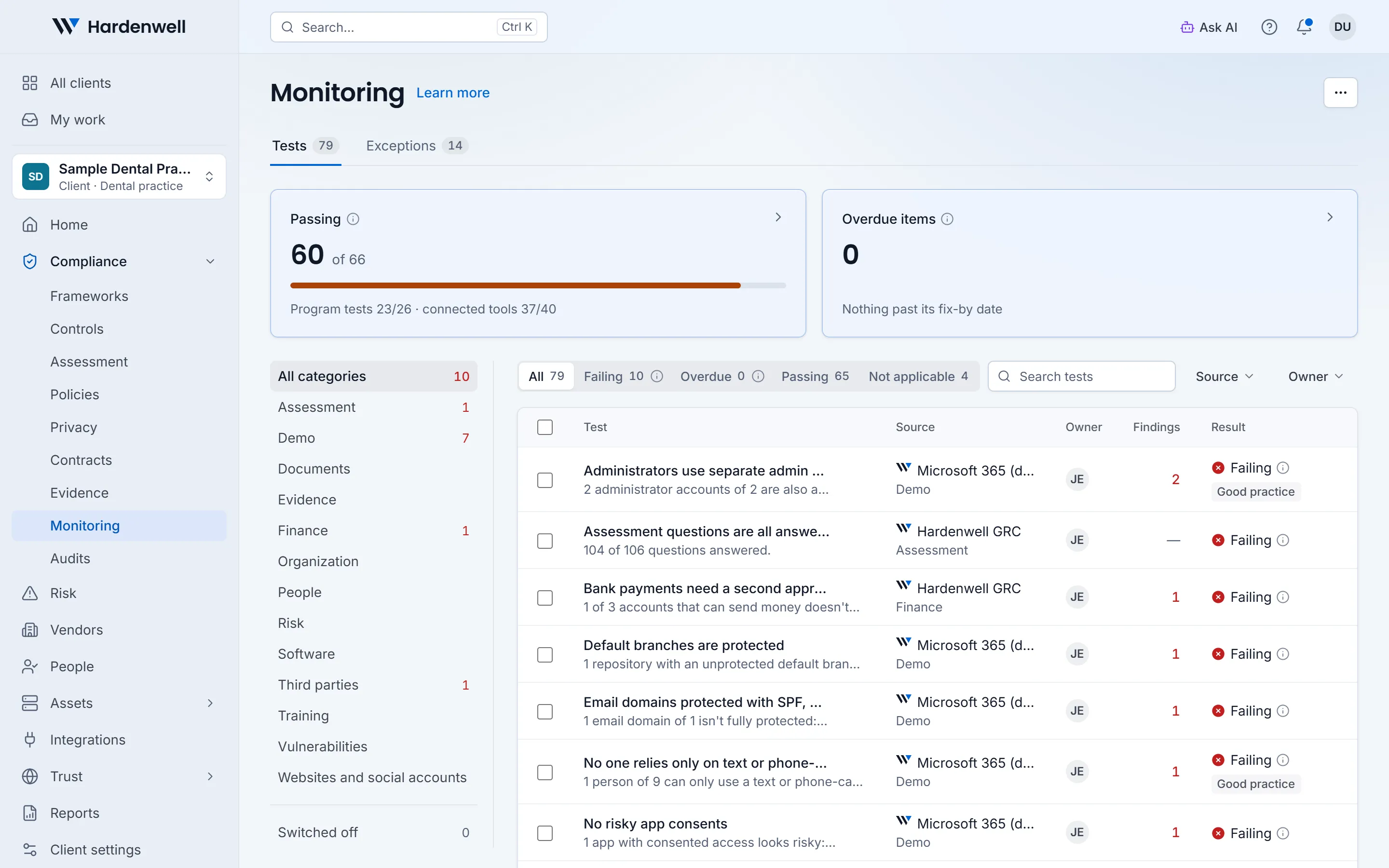
The same results reach your frameworks. A passing check counts as proof for the controls that cover its question, and those controls are mapped to HIPAA, SOC 2, ISO 27001, NIST CSF 2.0 and the other frameworks you turn on. The checks also suggest answers for the assessment questions, and by default they wait for a person to accept them. During an audit, only check runs inside the audit period count.
Firms that work from a ticketing tool can send failing checks to ConnectWise PSA, HaloPSA, Autotask PSA or Jira, and each ticket's status comes back to Hardenwell GRC.
More than fifty tools work the same way
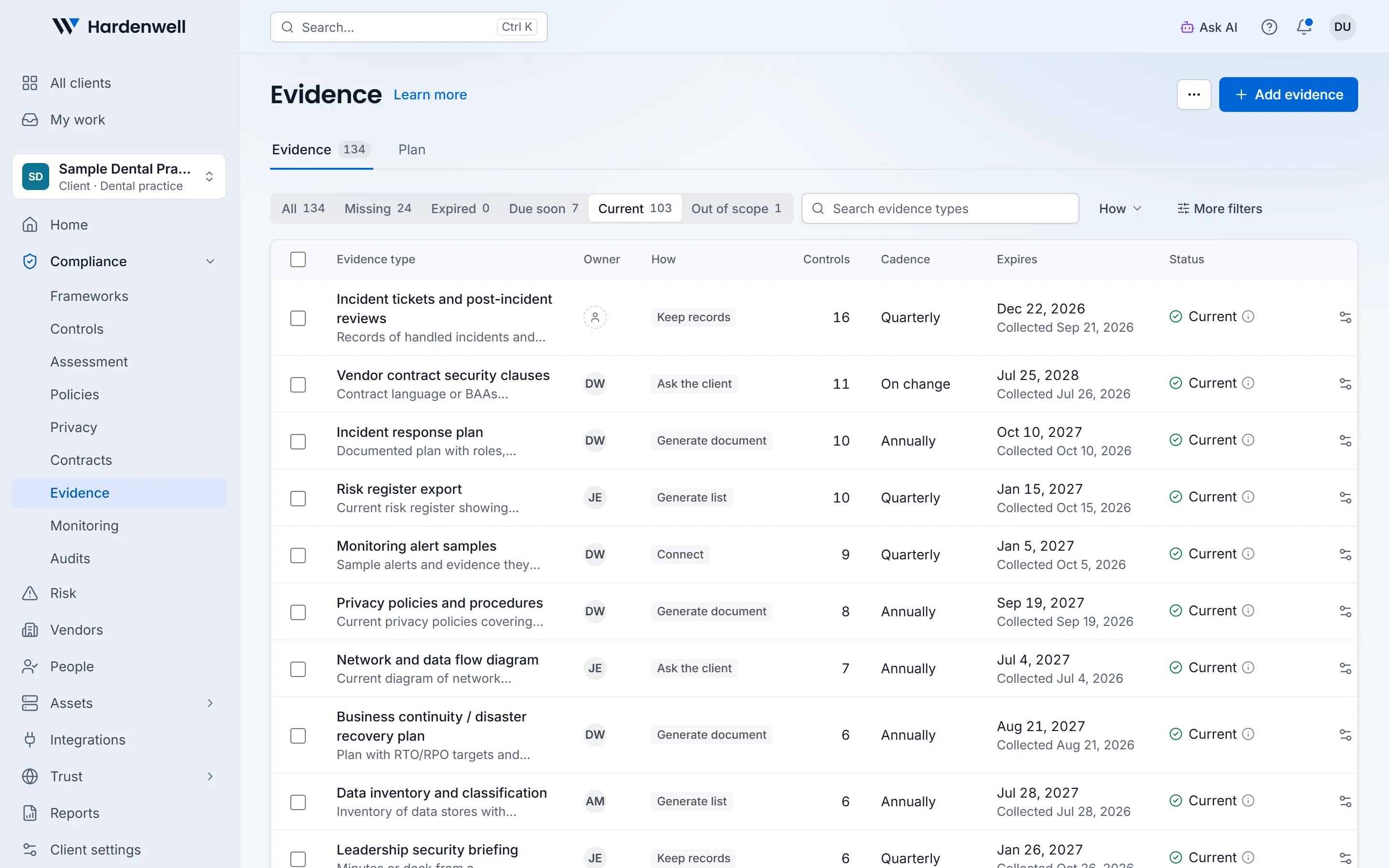
Hardenwell GRC connects to more than fifty tools across identity, devices, cloud, backup, training, vulnerability scanning, HR, code and business apps.
- Microsoft 365
- Google Workspace
- Amazon Web Services
- Microsoft Azure
- Google Cloud
- Okta
- JumpCloud
- Duo
- CrowdStrike Falcon
- SentinelOne
- Microsoft Defender for Endpoint
- Sophos Central
- Huntress
- NinjaOne
- Jamf Pro
- Kandji
- KnowBe4
- 1Password
- Bitwarden
- Veeam
- Datto BCDR
- Acronis Cyber Protect
- Tenable
- Rapid7
- GitHub
- GitLab
- Slack
- Zoom
- Salesforce
- BambooHR
- Gusto
- Cloudflare
- Datadog
- Cisco Meraki
Every one of them only reads settings and never changes the client's systems. Many newer connections are marked beta until we confirm them on live accounts. For other tools, upload evidence or record it by hand.
Frequently asked questions
Can Hardenwell GRC change settings in Microsoft 365 or Google Workspace?
No. The connections use read-only permissions. When a check fails, Hardenwell GRC shows what is wrong, and you or your IT provider make the change.
Who has to approve the connection?
For Microsoft 365, a Global Administrator approves the read-only permissions. For Google Workspace, a super admin signs in and approves read-only access. If you look after the client's systems, you can send their admin a connect link.
Do auditors accept evidence from connected tools?
Auditors decide what they accept. A dated record from the source that shows the check, its result and the accounts it covered is often easier to review than a screenshot. You can still add screenshots when an auditor asks.
How is our data protected?
Keys for connected tools are encrypted with AES-256-GCM before they are saved, and two-step sign-in is required by default. Our post on how we protect your data has the details.
Getting ready for an audit? Read the SOC 2 audit checklist, or see how IT providers use Hardenwell GRC. Then explore the demo and connect your own tenant. It lasts 14 days with no credit card.